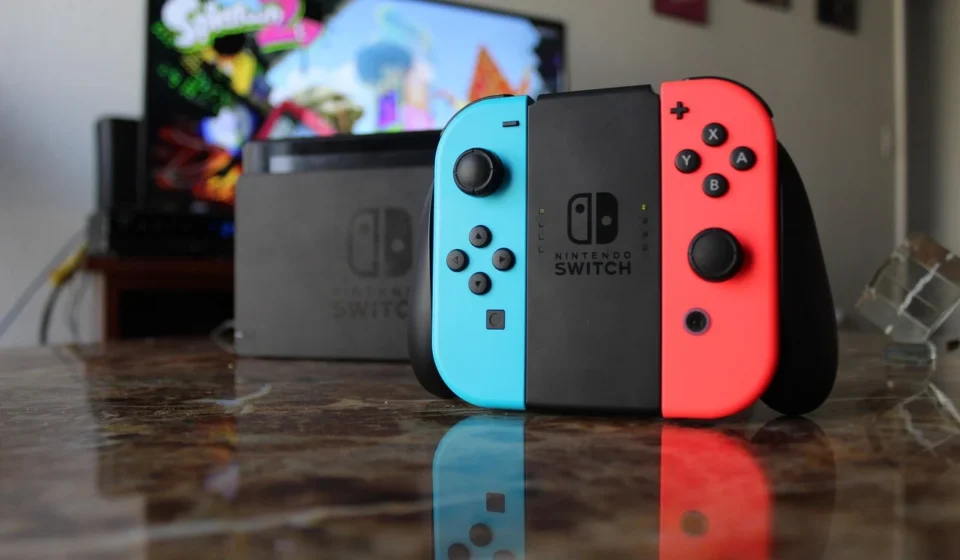
You can run a Switch emulator on a Chromebook. You primarily do this by utilizing Android applications available through the Google Play Store or by enabling Linux app support within ChromeOS. The success and performance of this effort hinge significantly on your Chromebook’s hardware capabilities. Modern devices offer a more viable experience.
Many people are curious if their versatile Chromebook can double as a portable gaming station for Nintendo Switch titles. While it’s not always a straightforward plug-and-play experience, with the right approach and a capable device, you can enjoy a surprising number of Switch games.
Can You Run Emulators on a Chromebook?
Yes, you can run emulators on a Chromebook, including those for the Nintendo Switch. Chromebooks offer two primary pathways for running emulators: via Android applications from the Google Play Store or by enabling Linux support on ChromeOS. This dual capability makes Chromebooks surprisingly flexible for emulation, extending beyond their typical web-centric functions.
For most users, the Google Play Store is the simplest route, as many emulators are available as Android apps. This method often requires less technical setup. However, for more advanced emulators or those not available on the Play Store, enabling Linux (Beta) on your Chromebook provides access to a wider range of software, including many desktop-grade emulators designed for Linux distributions.
Why Consider a Switch Emulator on a Chromebook?
The primary appeal of using a Switch emulator on a Chromebook is the ability to play Nintendo Switch games on a different, often larger screen with potentially more flexible control options. Chromebooks are typically more affordable than dedicated gaming laptops or even the Switch console itself. They offer a cost-effective way to access a vast game library if you already own the device.
Users also see this as a way to enhance portability. If you travel with a Chromebook for work or school, it can pull double duty as an entertainment device. Also, some users appreciate the ability to experiment with resolution scaling, custom GPU drivers, and other settings that emulators offer. You can potentially push visual fidelity beyond what the original hardware provides, assuming the Chromebook’s hardware can handle it.
What Are the Main Options for Running Switch Emulators on a Chromebook?
When looking to run Switch emulators on a Chromebook, you essentially have two main technological avenues: using Android apps directly from the Google Play Store or using the Linux environment built into ChromeOS. Each method has its own set of advantages, limitations, and setup requirements.
Android Apps via the Google Play Store
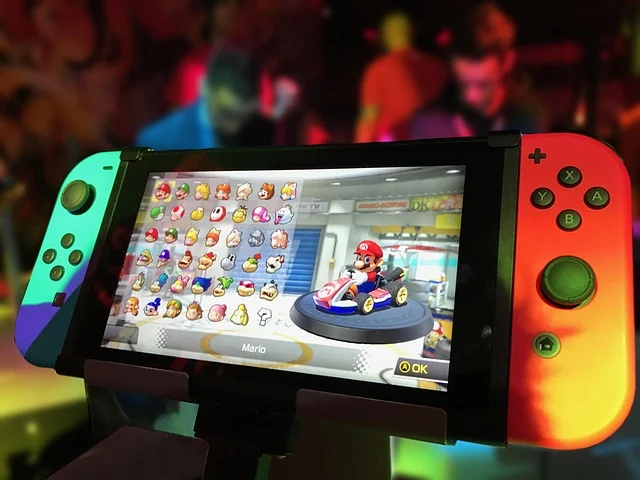
Many modern Chromebooks come with built-in support for Android applications, accessible through the Google Play Store. This is often the most straightforward method because it requires minimal setup beyond simply downloading and installing the app. Emulators designed for Android, such as Yuzu and Skyline Emulator, can be installed this way for a switch emulator chromebook. This approach benefits from the familiar Android interface and often has optimized performance for touchscreens, which many Chromebooks feature.
However, Android apps on ChromeOS run in a container. This can sometimes introduce performance overheads compared to native Linux applications. Compatibility can also be an issue. Some Android emulators are primarily optimized for smartphones with specific ARM architectures and graphics processing units (GPUs). These may not perfectly translate to all Chromebook hardware configurations.
Linux Support on ChromeOS
ChromeOS includes a feature called Linux (Beta) or Crostini. This allows you to run a full Debian Linux environment within your Chromebook. This opens up a world of possibilities for desktop-grade software, including more powerful emulators like Ryujinx. Developers typically create these for Windows, macOS, and Linux. Installing emulators this way often involves using the Linux terminal to download and compile software or install pre-built packages.
This method offers greater flexibility and access to more solid emulators. It also requires more technical proficiency for a switch emulator Chromebook. You’ll need to enable Linux support and allocate sufficient storage space. A minimum of 10GB is recommended for Linux itself, according to sources. You will also become comfortable with command-line operations. Performance can be excellent, especially on x86-based Chromebooks. Linux applications can often use hardware resources more directly.
Which Switch Emulators Are Available for Chromebooks?
Several Nintendo Switch emulators have emerged, each with its own development status, compatibility, and target platforms. For Chromebook users, the most relevant options are those that run on Android or Linux.
Yuzu (Android and Linux)
Yuzu is a prominent, free, and open-source Nintendo Switch emulator known for its active development. It is available on the Google Play Store for Android, making it a direct option for many Chromebooks. Yuzu boasts impressive compatibility, offering perfect compatibility with approximately 650 Nintendo Switch games, with many more playable with minor or major flaws, according to yuzu.com. The developers are continuously improving it, with new updates frequently enhancing performance and compatibility.
Yuzu also includes a built-in option to enable 6GB of RAM. This is 2GB more than the standard Nintendo Switch, potentially aiding performance. For graphics rendering, Vulkan is the future. The team aims to enable it by default for better performance, though OpenGL is still supported.
Ryujinx (Linux)
Ryujinx is another leading open-source Nintendo Switch emulator, developed in C#. It aims to provide a stable gaming experience across various devices, including those running Linux. Installing Ryujinx on a Chromebook typically requires enabling Linux Developer Mode and allocating sufficient space for the Linux environment.
Key features of Ryujinx include high game compatibility, a user-friendly interface, and support for both Vulkan and OpenGL graphics APIs. It even offers LAN multiplayer support, which can be a significant draw for some users. While it’s a powerful option, its Linux-only nature means it’s generally more complex to set up on a Chromebook than an Android-based emulator.
Skyline Emulator (Android)
Skyline Emulator is an Android app specifically designed to run Nintendo Switch games on Android phones and tablets, utilizing a high-performance emulation core and the Vulkan graphics API. Its focus on Android makes it another viable option for Chromebooks with Play Store support.
Skyline supports custom GPU drivers, resolution scaling, physical controllers, and customizable on-screen controls, offering a comprehensive experience. However, its performance on a device depends significantly on the phone or tablet’s hardware, meaning a powerful Chromebook is essential for smooth gameplay.
Suyu (Deprecated)
Suyu was a fork of the previously deprecated Yuzu emulator. In September 2026, Suyu version 0.0.4 introduced a recompiler mode. This translated the Switch’s AArch64 binary game code into native x86-64 executables for PCs, leading to significant performance increases. However, Suyu’s development has ended. Its GitHub repository is archived due to legal pressure from Nintendo. While it showed promise, it is no longer a viable option.
Lemon Switch Emulator
The Lemon Switch Emulator is a more recent development, with version 1.1.0 released in October 2026. This emulator has garnered attention for featuring online play on the Nextendo Network, with Mario Kart 8 Deluxe races reported to be working. It also includes improved settings and fixes for flickering in Fast GPU mode. Its inclusion of online multiplayer functionality sets it apart and could be a compelling choice for those seeking that feature on their Chromebook.
What Hardware Considerations Are Crucial for Switch Emulation on a Chromebook?
The performance of a Switch emulator on a Chromebook is almost entirely dependent on the device’s underlying hardware. Understanding these specifications is key to setting realistic expectations and choosing the right Chromebook for emulation.
Processor (CPU)
Chromebooks use either x86 (Intel/AMD) or ARM processors. Generally, x86 Chromebooks offer better compatibility and performance for emulation, especially with Linux-based emulators. Many emulators are originally developed for x86 architectures. ARM processors, while efficient, can sometimes struggle with the translation layers required for x86-optimized software. Android emulators are often built with ARM in mind.
For optimal performance with Android-based Switch emulators like Yuzu and Skyline, a benchmark score of around 400,000 is suggested for 50-70% playable games, and 550,000 (e.g., a Snapdragon 778G) for all playable games, according to apktodo.io. MediaTek processors, often found in more budget-friendly Chromebooks, generally have less compatibility, with only 20-30% of games being playable.
Random Access Memory (RAM)
Emulation is memory-intensive. While the Nintendo Switch itself has 4GB of RAM, emulators often require more for smooth operation, especially when running the ChromeOS and Linux environments concurrently. Yuzu, for instance, has a built-in option to enable 6GB of RAM. We recommend a Chromebook with at least 8GB of RAM for a reasonable emulation experience. 16GB would be ideal for more demanding titles or multitasking.
Graphics Processing Unit (GPU)
The integrated GPU in your Chromebook plays a critical role in rendering Switch games. More powerful integrated graphics, often found in higher-end Intel Core i5/i7 or AMD Ryzen Chromebooks, will yield significantly better results. Emulators increasingly use modern graphics APIs like Vulkan for improved performance. So, a GPU that fully supports Vulkan is highly advantageous.
Storage
Nintendo Switch games can be quite large, and the emulator itself, along with its firmware and keys, also consumes space. If you’re enabling Linux, you’ll need to allocate a minimum of 10GB for the Linux environment alone. We advise choosing a Chromebook with at least 128GB of internal storage, preferably more, to accommodate multiple games and ensure smooth operation without constantly managing space.
How to Install a Switch Emulator on Your Chromebook (Using Linux as an Example)
Installing a Switch emulator like Ryujinx on your Chromebook via the Linux environment involves a few key steps. While the exact commands might vary slightly based on the emulator and your Linux distribution (which is typically Debian on ChromeOS), the general process remains consistent.

- Enable Linux (Beta) on Your Chromebook: Go to your Chromebook’s Settings. Navigate to ‘Linux (Beta)’, and click ‘Turn on’. Follow the on-screen prompts to set up your Linux development environment. During this process, you’ll be asked to allocate disk space. We recommend at least 10GB for Linux to give you enough room for the emulator and games.
- Update Linux Packages: Once Linux is set up, open the Terminal app (found in your app launcher under ‘Linux apps’). Run the following commands to ensure all your Linux packages are up to date:
sudo apt updateand thensudo apt upgrade. This ensures you have the latest software components before installing the emulator. - Install Dependencies: Emulators often rely on specific libraries and packages. For Ryujinx, you’ll typically need to install .NET SDK and other graphical dependencies. You can find specific installation instructions on the Ryujinx website for Debian-based systems. A common command for .NET might look like this (always verify the latest instructions):
sudo apt install dotnet-sdk-6.0(or the current recommended version). - Download the Emulator: Visit the official Ryujinx website (ryujinx.org) and download the Linux build. It will usually be a .tar.gz archive. You can download it directly within your Linux environment using a web browser or the
wgetcommand in the terminal. - Extract and Run: Once downloaded, use the terminal to navigate to your download directory and extract the archive:
tar -xf ryujinx-xxxx.tar.gz. Then, navigate into the extracted folder and run the Ryujinx executable. You might need to make the executable permission withchmod +x Ryujinxbefore running it with./Ryujinx. - Configure Emulator and Load Games: Upon first launch, Ryujinx will guide you through setting up essential files like the Nintendo Switch firmware and prod.keys. You’ll need to legally obtain these from your own Nintendo Switch console. After configuration, you can add your legally dumped Switch game ROMs (XCI or NSP files) to Ryujinx and begin playing.
Common Challenges and Important Considerations
While running a Switch emulator on a Chromebook is possible, it is important to be aware of potential challenges and critical considerations that can impact the experience.
Performance Limitations
Even with a capable Chromebook, achieving consistent 60 frames per second (FPS) in all Switch games can be difficult. Many games will run at playable, but not perfect, frame rates. Performance varies greatly from game to game. The emulator’s optimization, the game’s complexity, and your Chromebook’s specific CPU and GPU heavily influence it.
Legality of ROMs and Firmware
This is a crucial point that often leads to confusion. While emulators themselves are generally legal, the legality of obtaining Nintendo Switch game ROMs (digital copies of games), firmware, and ‘prod.keys’ for a switch emulator chromebook is a complex area. To remain within legal boundaries, you should own the original Nintendo Switch console and the games. You should then ‘dump’ the firmware, keys, and game ROMs yourself from your console. Downloading these files from the internet without owning the original game or console is typically considered copyright infringement.
Input Lag and Controller Support
Using external controllers is highly recommended for a better gaming experience. Most Bluetooth controllers (like Xbox or PlayStation controllers) will work with Chromebooks. However, you might encounter some input lag, especially with Android-based emulators or if your Chromebook’s Bluetooth connection isn’t optimal.
Emulator Development Status
Emulators are constantly evolving. While Yuzu and Ryujinx are mature, new emulators like Lemon are emerging, and others, like Suyu, have ceased development due to legal pressure. Staying updated with the latest versions and understanding the development status of your chosen emulator is important for accessing performance improvements and bug fixes.
Frequently asked questions
Can you play Nintendo Switch on a Chromebook?
Yes, you can play Nintendo Switch games on a Chromebook by using emulators available as Android apps through the Google Play Store or by installing Linux-based emulators after enabling Linux support on ChromeOS. The experience will vary based on your Chromebook’s hardware.
Is Ryujinx illegal?
No, the Ryujinx emulator itself is not illegal. Emulators are generally considered legal software that mimics hardware. However, it is illegal to download or distribute copyrighted Nintendo Switch game ROMs, firmware, or cryptographic keys without owning the original game and console and legally dumping the files yourself.
What is a good Nintendo emulator for Chromebooks?
For Android-compatible Chromebooks, Yuzu is a strong contender available on the Google Play Store, known for its active development and good game compatibility. For Chromebooks capable of running Linux, Ryujinx is an excellent open-source option offering high compatibility and a solid feature set.
Can you connect a Nintendo Switch to a Chromebook?
No, you cannot directly connect a Nintendo Switch to a Chromebook via a cable to display its output or use the Chromebook as a screen. Chromebooks typically lack video input ports, meaning they cannot receive a video signal from an external device like a Nintendo Switch console.