
Learning how to use Photoshop relies on mastering non-destructive editing through layers, selection tools, and adjustment layers to make precise image enhancements without altering original pixels. Familiarizing yourself with the interface and keyboard shortcuts early on boosts editing efficiency, while saving work frequently in PSD format preserves your editable elements.
What to Use Adobe Photoshop For?
Adobe Photoshop is a powerful raster graphics editor primarily used for image creation, graphic design, and photo manipulation. Its extensive toolset makes it indispensable across various creative fields.

- Photo Editing and Retouching: Correcting colors, exposure, removing blemishes, red-eye, and enhancing overall image quality.
- Graphic Design: Creating marketing materials, social media graphics, website mockups, and digital illustrations.
- Digital Painting: Utilizing brushes and layers to create complex digital artwork from scratch.
- Web Design: Designing user interfaces (UI) and user experiences (UX) for websites and mobile applications.
- 3D Design: Importing and manipulating 3D objects, adding textures, and rendering.
- Video Editing: While not its primary function, Photoshop can edit video frames and create animated GIFs.
Why Use Photoshop?
Photoshop stands out due to its professional-grade features, extensive compatibility, and industry-standard status. It offers unparalleled control over image manipulation, allowing for highly customized and precise results that simpler editors cannot achieve.

- Non-Destructive Editing: Features like layers, masks, and Smart Objects allow you to make changes without permanently altering the original image data. This preserves flexibility and allows for easy revisions.
- Layer-Based Workflow: Organize complex projects, isolate elements, and apply effects independently.
- Advanced Selection Tools: Precise selection of objects, people, or areas within an image for targeted adjustments.
- Integration with Adobe Creative Cloud: Seamless workflow with other Adobe applications like Illustrator, InDesign, and Premiere Pro.
- Extensive Plugin Support: Expand functionality with third-party plugins for specialized tasks.
- AI-Powered Features: Tools like Generative Fill and Neural Filters streamline complex tasks and open new creative possibilities.
When to Use Photoshop?
Photoshop is the ideal tool when you need precise control, advanced editing capabilities, or to create complex visual compositions. Consider using Photoshop in these scenarios:
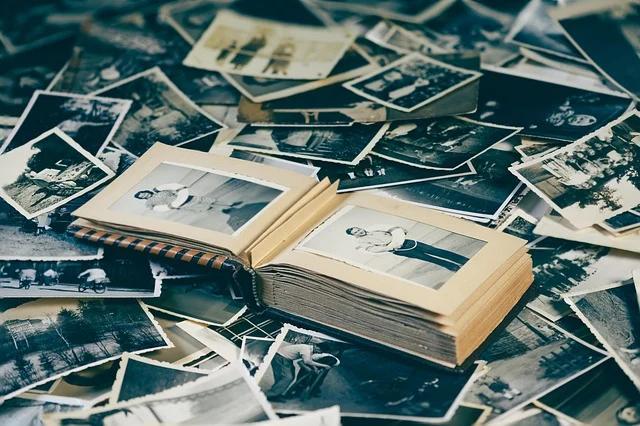
- When a photograph requires significant retouching, color correction, or restoration.
- For creating composite images by combining multiple photos or graphic elements.
- When designing detailed graphics for print or web that require specific dimensions and resolutions.
- For digital painting or creating intricate illustrations from a blank canvas.
- When you need to remove backgrounds, objects, or blemishes with high accuracy.
- For applying advanced artistic filters or effects that transform the look of an image.
How to Use Photoshop for Beginners: Your Essential Guide
This section covers navigating the Photoshop workspace, setting up documents for web or print, and working with layers and masks. It also explains techniques for retouching blemishes, adding text and vector shapes, following a step-by-step photo enhancement workflow, and exporting optimized files.

1. Navigating the Photoshop Workspace
Upon opening Photoshop, you’ll encounter a customizable interface. Understanding its main components is crucial:
- Menu Bar: (Top) Contains file, edit, image, layer, type, select, filter, 3D, view, window, and help options.
- Options Bar: (Below Menu Bar) Changes dynamically based on the active tool, providing tool-specific settings.
- Tools Panel: (Left) Houses all the editing tools (e.g., Move, Selection, Crop, Brush, Eraser).
- Document Window: (Center) Where your image or project is displayed and edited.
- Panels: (Right) Resizable and dockable windows for managing layers, adjustments, properties, history, and more. Key panels include Layers, Adjustments, and Properties.
You can customize your workspace by dragging panels, creating custom layouts, and saving them via Window > Workspace > New Workspace....
2. Setting Up Documents for Web or Print
Starting a new project requires defining its dimensions and resolution:
- Go to
File > Newor pressCtrl+N(Windows) /Cmd+N(Mac). - In the New Document dialog box:
- Name: Give your project a descriptive name.
- Width and Height: Enter your desired dimensions. Choose units (pixels, inches, cm, etc.).
- Resolution:
- For Web/Screen: Typically 72 pixels/inch.
- For Print: Typically 300 pixels/inch for high-quality results.
- Color Mode:
- RGB Color: For digital displays (web, video).
- CMYK Color: For professional printing.
- Background Contents: Choose White, Black, Background Color, or Transparent.
- Click
Create.
3. Working with Layers and Masks
Layers are the foundation of non-destructive editing in Photoshop. They allow you to stack images, text, and effects independently.
Layers Basics:
- Creating a New Layer: Click the “New Layer” icon at the bottom of the Layers panel (a square with a plus sign).
- Renaming Layers: Double-click the layer name in the Layers panel.
- Visibility: Click the eye icon next to a layer to toggle its visibility.
- Rearranging Layers: Drag layers up or down in the Layers panel to change their stacking order.
- Layer Groups: Select multiple layers and press
Ctrl+G(Windows) /Cmd+G(Mac) to organize them into a folder.
Layer Masks:
Layer masks allow you to selectively hide or reveal parts of a layer without erasing them. This is crucial for non-destructive editing.
- Select the layer you want to mask in the Layers panel.
- Click the “Add layer mask” icon (a rectangle with a circle inside) at the bottom of the Layers panel.
- Select the Brush tool (B).
- Set your foreground color to Black to hide parts of the layer, or White to reveal them. Use shades of gray for semi-transparency.
- Paint on the image. The mask thumbnail in the Layers panel will show your painted areas.
4. How to Use Photoshop to Edit Photos (Step-by-Step Photo Enhancement Workflow)
This workflow provides a general approach to enhancing photographs:
- Open Your Image: Go to
File > Openand select your photo. - Crop and Straighten: Use the Crop tool (C) to refine composition and straighten horizons.
- Basic Adjustments (Non-Destructive):
- Go to the Adjustments panel and click on icons like Curves, Levels, or Brightness/Contrast. These create adjustment layers, keeping your edits separate from the original image.
- Use the Properties panel to fine-tune the adjustments. For example, in Curves, drag points on the curve to adjust tones.
- Color Correction:
- Add a Hue/Saturation adjustment layer to tweak specific colors or desaturate.
- Use a Color Balance adjustment layer to shift overall color tones (e.g., warmer or cooler).
- Retouching (How to Retouch Blemishes):
- Create a new empty layer above your image (
Ctrl+Shift+N/Cmd+Shift+N). - Select the Spot Healing Brush tool (J). In the Options bar, ensure “Sample All Layers” is checked. Click on small blemishes to remove them automatically.
- For larger or more complex areas, use the Healing Brush tool (J). Alt-click (Windows) / Option-click (Mac) to sample a clean area, then paint over the blemish.
- For precise cloning, use the Clone Stamp tool (S). Alt-click / Option-click to define a source point, then paint to replicate that area.
- Create a new empty layer above your image (
- Sharpening:
- Duplicate your background layer (
Ctrl+J/Cmd+J). - Go to
Filter > Sharpen > Unsharp Mask. Adjust Amount, Radius, and Threshold. - Optionally, add a layer mask to this sharpened layer and paint with black to selectively apply sharpening only where needed (e.g., eyes, details).
- Duplicate your background layer (
- Noise Reduction: If needed, go to
Filter > Noise > Reduce Noise. - Save Your Work: Save frequently as a PSD file to preserve layers (
File > Save As...).
5. Adding Text and Vector Shapes
Adding Text:
- Select the Type tool (T).
- Click on the canvas to create a point type layer, or click and drag to create a paragraph text box.
- Type your text.
- Use the Options bar or the Character and Paragraph panels (
Window > Character,Window > Paragraph) to adjust font, size, color, leading, kerning, and alignment. - Press
Ctrl+Enter(Windows) /Cmd+Return(Mac) to commit the text.
Adding Vector Shapes:
- Select a Shape tool (U) from the Tools panel (e.g., Rectangle, Ellipse, Custom Shape).
- In the Options bar, ensure “Shape” is selected from the dropdown menu (not Path or Pixels).
- Choose a Fill color and Stroke color/width.
- Click and drag on the canvas to draw your shape. Hold
Shiftto constrain proportions (e.g., perfect square or circle). - Shapes are created on their own vector layers, allowing for scalable, non-destructive editing.
6. How to Use Photoshop AI / Generative Fill
Photoshop’s AI features, powered by Adobe Firefly, significantly expand creative possibilities, especially Generative Fill.
How to Use Photoshop AI to Edit Photos with Generative Fill:
Generative Fill allows you to non-destructively add, extend, or remove content from images using text prompts.
- Select an Area: Use any selection tool (e.g., Rectangular Marquee, Lasso, Object Selection tool) to select the area where you want to apply Generative Fill.
- Activate Generative Fill: A contextual Task Bar will appear. Click the “Generative Fill” button.
- Enter a Prompt: Type a descriptive text prompt in the text box (e.g., “add a small sailboat,” “extend the sky,” “remove the person”). You can also leave it blank for Photoshop to intelligently fill the area based on its surroundings.
- Generate Variations: Click “Generate.” Photoshop will create three variations of the generated content.
- Review and Refine:
- The generated content appears on a new “Generative Layer” above your original image.
- Use the Properties panel to cycle through the three variations.
- If you’re not satisfied, click “Generate” again for new options or refine your prompt.
Other AI Features:
- Neural Filters (Filter > Neural Filters): Apply advanced AI-powered effects like Smart Portrait (change facial expressions), Landscape Mixer (blend scenes), Colorize (add color to black and white photos), and Style Transfer.
- Object Selection Tool (W): Intelligently selects distinct objects in an image with a single click or drag.
- Sky Replacement (Edit > Sky Replacement): Automatically detects and replaces the sky in an image.
7. How to Use Photoshop to Remove Background
Removing a background is a common task with several methods:
- Object Selection Tool:
- Select the Object Selection tool (W).
- Click or draw a marquee around your subject. Photoshop will automatically detect and select it.
- Quick Selection Tool:
- Select the Quick Selection tool (W).
- Paint over your subject; Photoshop will intelligently expand the selection. Use
Alt(Windows) /Option(Mac) to deselect areas.
- Select Subject:
- Go to
Select > Subject. Photoshop uses AI to automatically select the main subject.
- Go to
- Refine Edge/Mask:
- After making a selection, click the “Select and Mask…” button in the Options bar or Contextual Task Bar.
- Use the “Refine Edge Brush Tool” to smooth edges, especially hair or fur.
- Under “Output To,” choose “New Layer with Layer Mask.” Click OK.
- Background Eraser Tool: (For more complex or detailed backgrounds)
- Select the Background Eraser tool (E).
- Adjust its settings in the Options bar (e.g., Tolerance, Limits).
- Paint over the background. The tool samples the color under the crosshair and erases similar colors.
- Pen Tool (P): (For highly precise, sharp edges)
- Draw a path around your subject using the Pen tool.
- Right-click on the path in the Paths panel and choose “Make Selection.”
- Refine and output as a layer mask.
8. How to Use Photoshop to Upscale Image
Upscaling an image increases its resolution, often resulting in quality loss. Photoshop offers several methods to minimize this.
- Image Size Dialog:
- Go to
Image > Image Size...(Ctrl+Alt+I/Cmd+Option+I). - Ensure the “Resample” checkbox is enabled.
- Change the “Width” or “Height” to your desired larger dimensions.
- For “Resample,” choose “Preserve Details 2.0” (introduced in newer versions) or “Bicubic Smoother (enlargement)” for the best results.
- Click OK.
- Go to
- Camera Raw Filter:
- Convert your image layer to a Smart Object (right-click layer > Convert to Smart Object).
- Go to
Filter > Camera Raw Filter... - In the Camera Raw dialog, go to the “Details” tab and apply noise reduction and sharpening *before* upscaling.
- Close Camera Raw. Then, use the Image Size dialog as above, applying sharpening *after* the upscale if needed.
- Super Zoom (Neural Filter):
- Go to
Filter > Neural Filters. - Find the “Super Zoom” filter.
- Adjust the zoom factor and other settings. This AI-powered filter can sometimes produce cleaner upscales.
- This filter works best on smaller, more focused areas rather than entire large images.
- Go to
After upscaling, you may need to apply a slight amount of sharpening (Filter > Sharpen > Unsharp Mask) to restore detail, but be careful not to introduce artifacts.
9. How to Use Photoshop on iPad / iPhone
Adobe offers dedicated apps for mobile devices, providing a streamlined Photoshop experience:
- Photoshop Express (iPhone/iPad): A free, lightweight app for quick edits, collages, and sharing. It handles basic photo adjustments, filters, and retouching.
- Photoshop for iPad: A more robust, subscription-based app that brings core Photoshop features like layers, selections, and masking to the iPad. It supports PSD files and integrates with Creative Cloud. While not as feature-rich as the desktop version, it’s powerful for on-the-go professional work.
To use Photoshop on these devices, download the respective app from the App Store. The interface is optimized for touch, and features like layers and adjustments are accessible through touch gestures and simplified panels. Files can be synced via Adobe Creative Cloud.
Exporting Optimized Files
Once your project is complete, you need to save it in a format suitable for its intended use.
- Go to
File > Export > Export As...(recommended for web).- Choose format (JPEG for photos, PNG for transparency, GIF for animation).
- Adjust quality/compression settings.
- Preview the file size.
- Alternatively,
File > Save As...- PSD: Preserves all layers and editable elements. Ideal for ongoing projects.
- JPEG: Standard for photos, good compression, no transparency.
- PNG: Supports transparency, good for web graphics and logos.
- TIFF: High-quality, often used for print, supports layers (if saved with them).
- PDF: Can save Photoshop documents with layers, suitable for print or sharing.
Related guides
Sources: Photoshop Desktop Help
Frequently asked questions
Is Photoshop hard to learn for beginners?
Photoshop has a steep learning curve due to its extensive features, but it’s not impossible. Starting with basic concepts like layers, selections, and adjustment layers, and focusing on specific tasks (like photo editing or background removal) can make it more manageable. Consistent practice and following tutorials are key to mastering it.
Do I need a powerful computer to run Photoshop?
While Photoshop can run on many systems, a powerful computer significantly improves performance, especially with large files or complex operations. Recommended specifications include a multi-core processor (Intel or AMD), at least 16GB of RAM (32GB or more is better), a dedicated GPU with VRAM, and a fast SSD for both the operating system and scratch disk.
What is the difference between Photoshop and Lightroom?
Photoshop is primarily a pixel-based image editor for detailed manipulation, compositing, and graphic design. Lightroom is a non-destructive image organizer and raw processor, ideal for managing large photo libraries, batch editing, and basic adjustments. Many photographers use both, starting in Lightroom for organization and basic edits, then moving to Photoshop for advanced retouching or creative compositing.
Can I use Photoshop without a subscription?
No, Adobe Photoshop is exclusively available through a Creative Cloud subscription. Adobe offers various plans, including a Photography Plan that bundles Photoshop and Lightroom, or a Single App plan for Photoshop alone. There is typically a 7-day free trial available for new users.